
Too high above the fireplace?
The app finds the floor, shows the height of the screen's centre, and warns when you'd be looking too far up or down at it.

TVSizAR is Appoly’s own app for choosing a TV size. Point your phone at the wall, tap, and a TV appears there at real size. Each size is graded A to G from where you’re standing, or from the seat you’ve saved.
View on the App Store
Most people pick a TV by its diagonal, from a shop wall or a product page. Whether 65″ suits a room depends on that wall, what’s under it and how far away the sofa is. TVSizAR was first built in 2019, and James rebuilt it as version 2.0 this year.
A screen on a showroom wall, among dozens of others, gives little sense of how it will look at home.
A size calculator gives a number from a distance you type in. It can’t show how a 75″ looks above this fireplace.
The original app could put a TV on the wall, but it left people to decide for themselves whether that size was right.
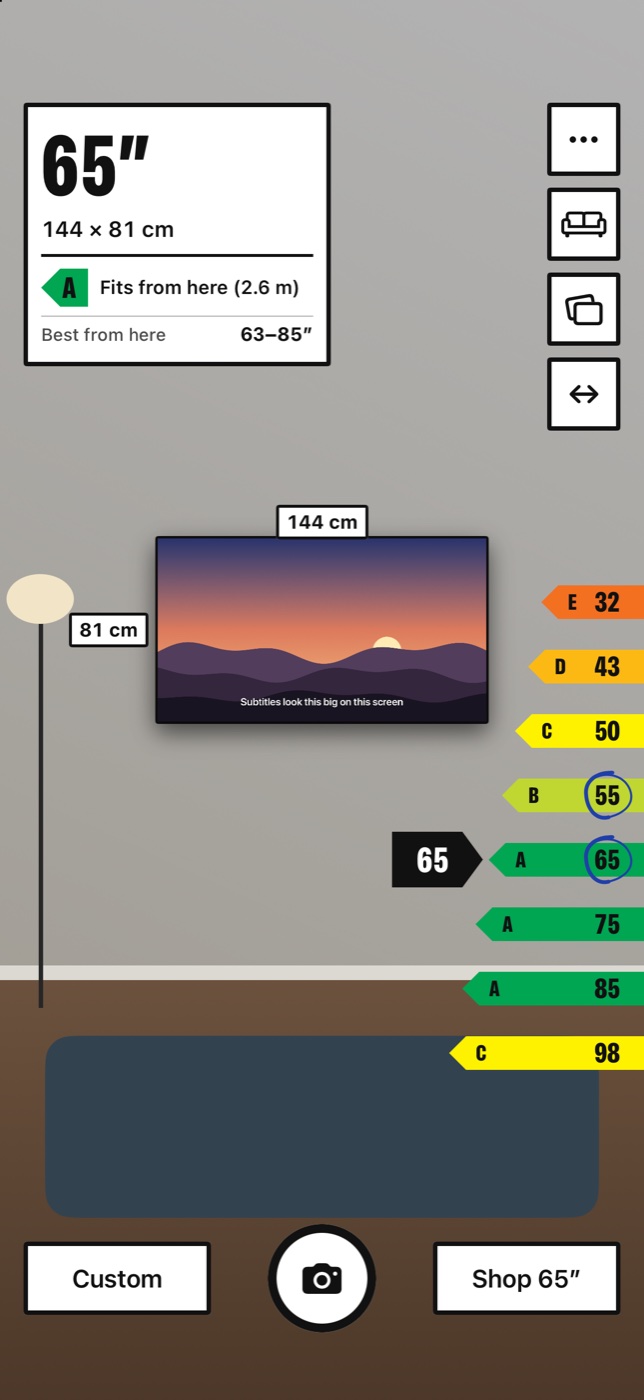
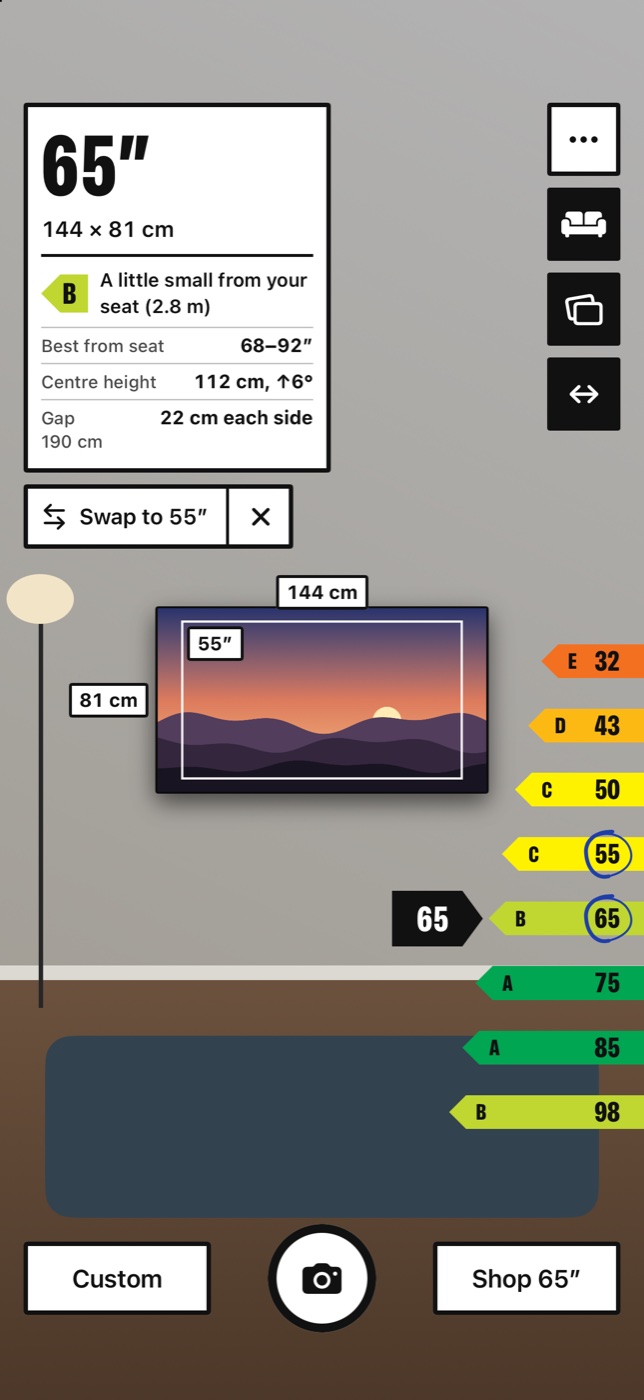
Version 2.0 is a complete rebuild for iPhone and iPad, and existing users got it as a free update.
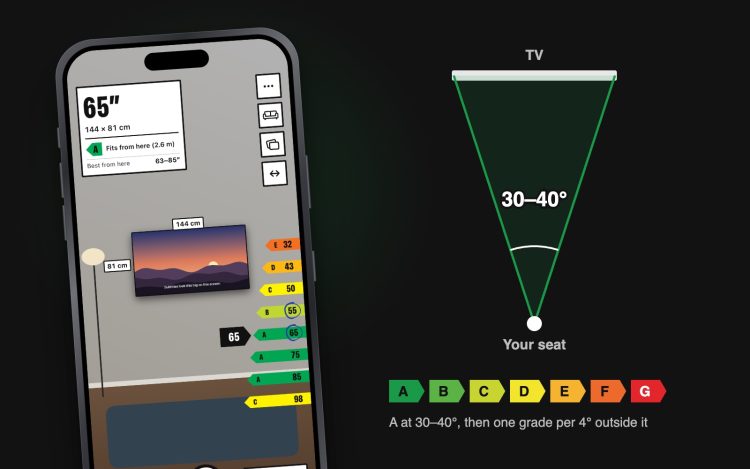
The grade comes from how much of your view the screen fills. SMPTE recommends at least 30 degrees and THX about 40, so a screen that fills 30 to 40 degrees from your eyes gets an A. Every 4 degrees outside that band, or part of 4, drops a grade, down to G for a screen far too small or far too big.
The app measures from your real position in the room, so sitting off to one side changes how much of your view the screen fills, and the grade changes with it.
The app finds the floor, shows the height of the screen's centre, and warns when you'd be looking too far up or down at it.
Mark the two edges of a gap or a unit and the app tells you how much room is left each side, or how far the TV overhangs.
Enter a screen's width and height in centimetres or inches, and optionally the frame and depth, for sizes from 20" to 120".
The virtual screen shows a picture with subtitles at a typical size, so you can judge from the sofa whether they'd be readable.
On iPhones and iPads with LiDAR, people and furniture in front of the screen hide it, as they would in real life.
Take a photo with the size and grade stamped on it and send it to whoever you're buying with.
A TV is an expensive thing to get wrong, so 2.0 holds back a grade whenever it can’t be sure of the scale.
When you tap a surface that ARKit has only estimated, the TV appears as provisional, with no grade and no photo. Once a matching wall is confirmed, the TV snaps onto it and squares up, and only then is it graded. The app also holds back the grade when tracking is poor, when you’re behind the wall or when you’re standing too close.
The next time you open the app, the TV is back on the same wall. The map of the room, the TV and your seat are saved in one step, so a new map is never paired with an old placement, and a restored TV stays provisional until the app recognises the room again.
AR can’t run in the iPhone Simulator, so the app includes a drawn living room that drives the same screens. The App Store screenshots were taken there too. The size and angle maths, grade boundaries, off-axis viewing, saving and restoring, and the move from version 1 are covered by 47 automated tests.
There’s no account, no analytics and no tracking, and the room scan stays on the device. The app uses no third-party libraries; the original used seven. You choose when anything leaves the phone: sharing a photo, or tapping Shop, which opens an Amazon search for the size you’ve chosen, after telling you it’s an affiliate link.
The controls borrow the energy-rating sticker found on TVs in shops: white label stock, black ink and the seven-colour A to G scale. That scale is only ever used for fit, so only an A is green.
Labels are solid white with black ink and no blur or transparency, so they stay legible over whatever the camera is showing.
Every control is labelled, the size ladder is adjustable, and grade changes are announced. You can place a TV and measure a gap without seeing the screen.
Text sizes follow the iPhone’s settings, Reduce Motion turns off the moving parts of the labels, and the red G grade uses white text for contrast.